|
|
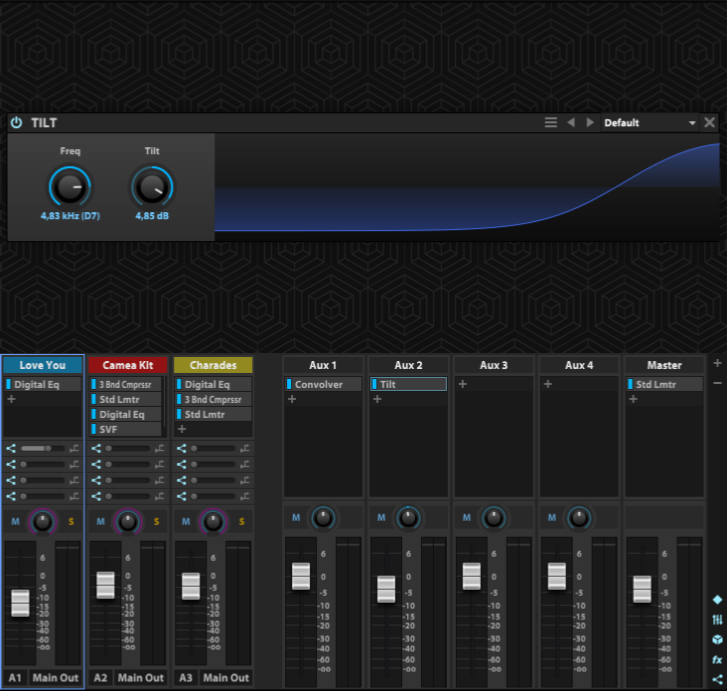
Basically, the Mixer view has two parts:- the upper, where you can view and edit Effects.
To see the Effect’s user interface, select it in the respective channel strip. - the lower, in which you can view and edit Part, Aux, and Master channel strips.
Part channel strips, from top to bottom:- 4 Inserts
- 4 Aux sends, with post/pre fader buttons
- Mute, Pan, Solo
- Gain fader
- Midi channel and audio output settings
Aux channel strips, from top to bottom:- 8 Inserts
- Mute and Pan
- Gain fader
Master channel strip, from top to bottom:
There’s also a hide/show section on bottom, right.
If you just want to be musically creative (no Program editing), you can thoroughly use the Mixer View, because Parts can be edited, added, replaced, deleted just as in Main View's left sidebar: - To add a Part, drag and drop it from the File Browser to an empty space besides the other Part channel strips.
- To replace a Part, double-click it (Browser appears), or right-click a channel strip (‘Load Program’).
- To delete a Part, select the channel strip and hit the Delete key, or right-click on a channel strip Part and choose ‘Empty Part’.
Macro controls, however, are not available in Mixer view. Individual Layer or Keygroup outputs doesn't appear in Mixer view, just Program outputs.
|